Apple Watch remote
How to use Apple Watch as a remote for iPhone audio recording


Place your iPhone where interview audio is strongest, then keep recording control on your wrist.
With Dispatch open and ready on the paired iPhone, Apple Watch can start, pause, resume, and stop that iPhone recording or add a generic marker. The Watch shows elapsed time and status, but it does not capture or relay audio.
- Feature
- Free
- iPhone
- iOS 17+
- Apple Watch
- watchOS 10+
The interview problem: the controls and the microphone want different places
In an interview or group conversation, the easiest place to operate an iPhone is often not the best place to record. Beside your notebook it may be too far from some participants; picking it up to check the timer can add handling noise and interrupt eye contact.
Microphone distance matters. Apple’s iPhone recording guide advises moving the microphone closer to or farther from the subject to adjust recording level. The principle applies beyond Voice Memos: the iPhone can only capture the sound that reaches it.
Dispatch separates those jobs. Put the iPhone in a useful listening position and leave it there; use the Dispatch app on Apple Watch for the controls. That means less device handling and more attention on the person answering.
What “Apple Watch remote” means in Dispatch
Apple Watch can be a recorder in its own right. Apple’s Voice Memos guide for Apple Watch describes recording personal notes with the Watch microphone. Dispatch uses a different arrangement: the Watch is a remote for a recording session on the paired iPhone.
| Question | Watch-native recording | Dispatch Watch remote |
|---|---|---|
| Where is audio captured? | Apple Watch microphone | The active iPhone audio input |
| Where does the recording run? | On Apple Watch | In Dispatch on iPhone |
| What does the Watch do? | Records and plays a memo | Sends start, pause, resume, stop, and marker commands |
| What feedback appears? | Watch recording interface | Dispatch status, elapsed time, and an activity cue |
| What is it best for? | A quick memo spoken near your wrist | An interview where the iPhone should stay in a stronger audio position |
Moving your wrist does not move the interview microphone. The iPhone remains responsible for capture while the Watch sends commands and receives status through Apple’s Watch Connectivity framework.
The Apple Watch remote is included free with Dispatch. It requires an iPhone running iOS 17 or later and an Apple Watch running watchOS 10 or later.


Put the iPhone where the conversation sounds best
There is no perfect position for every room, but a short check helps:
- For an interview or group conversation, start with the iPhone near the centre of the participants, then test and adjust until every voice is clear.
- Use a stable surface; bumps and paper movement can become part of the recording.
- Keep the microphone openings clear of notebooks, clothing, and case flaps.
- Move away from steady noise such as an air vent, laptop fan, or open window.
- Record a brief test, speak from the actual seats, and listen back before the interview.
The Watch remote does not improve the microphone or repair a difficult room. Its value is that, once you find a useful position, you can leave the iPhone still and continue controlling the session.
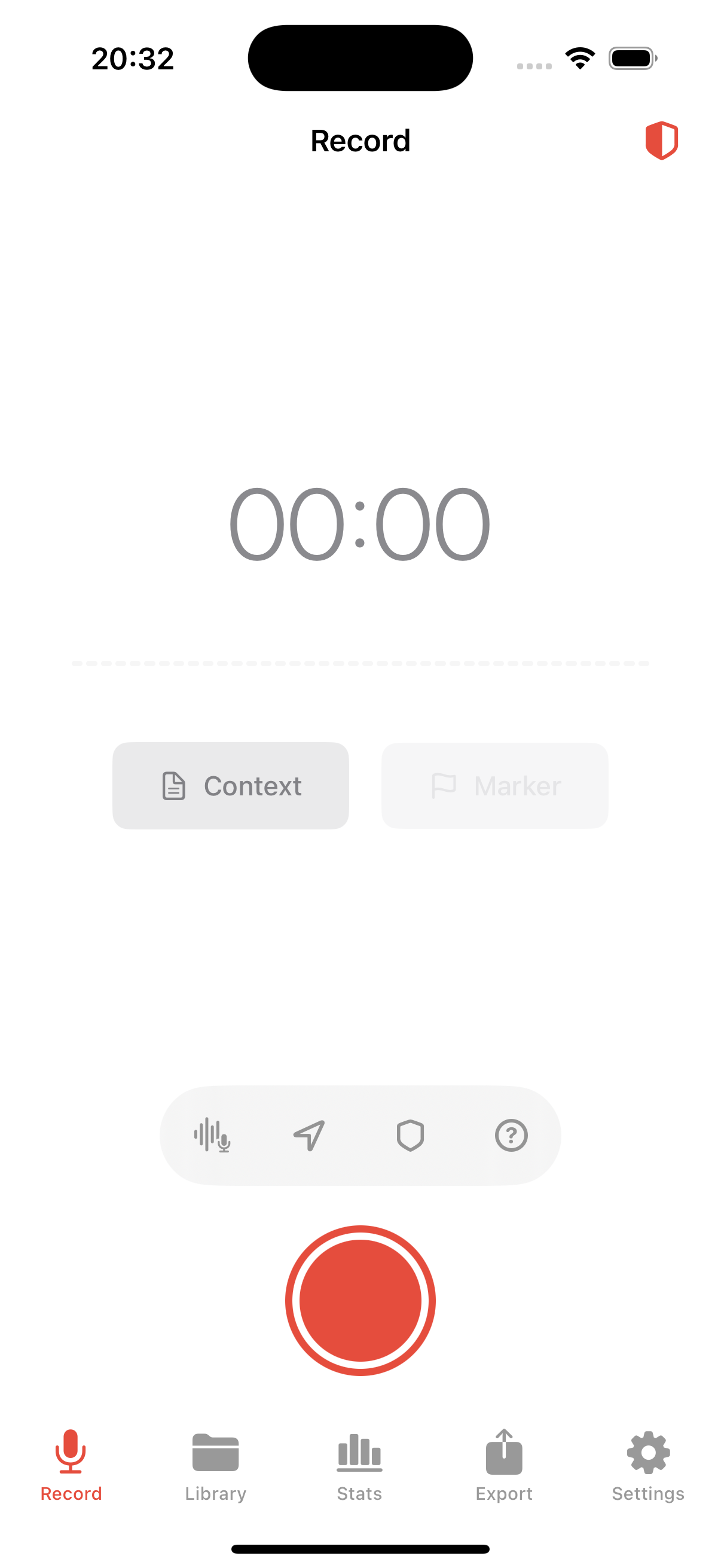

Set up and record from your wrist
Prepare both devices before the conversation, while there is still time to solve a permission or connection issue.
-
Install Dispatch on both devices
Get Dispatch from the App Store, then confirm its Watch app is installed on the paired Apple Watch.
-
Prepare and charge the devices
Open Dispatch on iPhone, allow microphone access, choose the recording settings, and charge both devices for the planned session.
-
Run a short rehearsal
Start from the Watch, pause, resume, add a marker, and stop. Confirm that the audio saved correctly on iPhone.
-
Place the iPhone and leave it ready
Put the iPhone in the tested position, keep it visible and stable, and leave Dispatch open on its recording screen. The iPhone must remain reachable and ready to respond.
-
Confirm “Ready” on Apple Watch
Open Dispatch on Apple Watch and check the status. If it says “Phone unreachable,” restore the connection before continuing.
-
Start and wait for confirmation
Tap record, then wait for the Watch to show REC and elapsed time. The returned status confirms that the iPhone session responded.
-
Pause, resume, and mark when needed
Pause for an agreed break or interruption, and say what is happening so participants share the same understanding. Tap the flag for a useful quote or transition; it adds a generic timestamp marker that you can describe on iPhone later.
-
Stop, save, and verify
Tap stop, wait for the Saving and Saved status, then check the recording on iPhone. For important work, listen to the beginning and end before leaving.
Mark and monitor the recording
Dispatch on Apple Watch shows elapsed time, recording or paused status, and controls appropriate to the current state. Its animated bars provide a clear activity cue.
Markers turn “the quote about the budget” into a timestamp instead of a search through forty minutes of audio. Be selective: mark a decisive answer, a number to check, a topic change, or a likely quote. The Watch creates a fast, generic bookmark; review the nearby audio or transcript on iPhone afterward and add a useful kind or note.
Look for the expected state after each command and verify the saved file when the session ends.
Privacy: control messages cross your wrist, not interview audio
Dispatch does not send recorded audio to Apple Watch. The Watch sends commands such as start or add marker; the iPhone returns state such as recording, paused, elapsed time, or saved.
The phone is the recorder and the Watch is the controller. Dispatch is local-first, so recordings stay on iPhone by default unless you choose an optional sharing, sync, or cloud feature.
If the Watch says “Phone unreachable”
Do not assume commands were queued. Resolve the connection, then confirm “Ready.”
- Open Dispatch on the iPhone and return to the recording screen.
- Check that the devices are paired and their usual Bluetooth and Wi-Fi connections are available.
- Bring them together, reopen the Watch app, and wait briefly for status to refresh.
- If control does not return, restart the apps and make another short test.

Reachability changes with device state, radio conditions, and the environment. Dispatch does not promise a fixed range or guaranteed control while the iPhone is locked, the app is closed, or devices are disconnected. Keep Dispatch open and ready, watch for confirmation, and be prepared to operate the iPhone directly.
Common questions
- Does Dispatch record through the Apple Watch microphone?
- No. The iPhone captures audio; the Watch sends controls and displays status. Use a Watch-native app when the Watch itself should be the microphone.
- What can I control from Apple Watch?
- Start, pause, resume, and stop the iPhone recording, and add a generic timestamped marker. The Watch also shows elapsed time and status.
- Is the Apple Watch remote a Pro feature?
- No. Apple Watch remote control is a free Dispatch feature.
- Can I name a marker on the Watch?
- The Watch creates a generic marker for speed. Review it on iPhone afterward to add a meaningful kind or note.
- What software versions are required?
- iOS 17 or later and watchOS 10 or later.
- Does it work when the iPhone cannot be reached?
- No. The iPhone must be reachable and Dispatch open and ready. If the Watch reports “Phone unreachable,” restore the session on iPhone before continuing.
Record openly and check the rules where you are
Recording-consent laws vary by country, state, setting, and the people involved. Dispatch’s consent guidance is advisory and is not legal advice. Explain the recording, get the permission your situation requires, and respect an off-the-record request. Journalists working in the United States can use the Reporters Committee for Freedom of the Press Reporter’s Recording Guide as a starting point, then seek qualified advice when the stakes or facts require it.
Ready for the next interview?
Put the recorder in the right place
Stop choosing microphone position based on where the controls are. Let the iPhone stay where it can hear while start, pause, resume, stop, and markers remain on your wrist.
Download Dispatch on the App Store Try the Apple Watch remote free.